It seems the VirtualCenter upgrade process is not getting any better. I can't for the life of me understand how bugs like this got through with the Update 2 release, but they did and are one of the primary drivers for my company to roll out Update 3 asap (that and the security fixes). But lo, there are new upgrade problems afoot, notably this one which I have encountered 3 times now. Duncan called it out a few weeks back.
Now what really grinds my gears is that the most important fixes (for me anyway) are security related and of course the fix for the guest customisation bug. That is, binary patches - nothing at all to do with the database. In fact I can't find anything obviously database related in the release notes, and this is somewhat validated by the fact to get around this we need to append a "MINORDBUPGRADE=1" argument to VCDatabaseUpgrade.exe (the DSN, UID and PWD arguments don't appear to be necessary). So for anyone at VMware reading this, STOP TOUCHING THE VC DATABASE WHEN YOU DON'T HAVE TO. Minor DB upgrade? WTF? You're risking the VC database and ruining another persons saturday (now we need a Unix admin, a Windows admin _and_ a DBA to upgrade VC) for a MINOR UPGRADE?
Additionally, the jre binaries are not upgraded correctly as we found out when the Sun Ray environment in our lab broke after applying U3 (Sun have a KB article about this that I can't find at the moment). A clean install had no such problems however.
If VMware are going to continue with these monolithic style updates so frequently (Update 1 in April, Update 2 in July, and now Update 3 in October), they need to get their chi together. Tomcat and JRE security related bugs come out all the time, and if you work in a regulated environment then you have no choice but to patch ASAP. But having to touch the database in order to do so is the opposite of cool. Be cool VMware, be cool!
UPDATE: Here's that Sun KB article I was referring to... it actually mentions Update 2 but the same applies for Update 3
Showing posts with label Database. Show all posts
Showing posts with label Database. Show all posts
Thursday, 23 October 2008
Friday, 8 August 2008
VirtualCenter 2.5 Update 2 Database Changes
After my previous postings on the VirtualCenter upgrade process, I had some correspondence with VMware devs that was proxied by John Troyer from the VMTN Blog. During the course of that correspondence, I lamented the generic names given to the stats rollup SQL agent jobs. SQL agent jobs are created per-instance and thus having generic names would be problematic in a shared SQL environment - effectively, you'd need a SQL instance per VC database, instead of a single SQL instance with many VC databases. Not exactly an optimal use of resources on the SQL box.
But surprise surprise - today I installed VC 2.5 Update 2, and guess what I saw
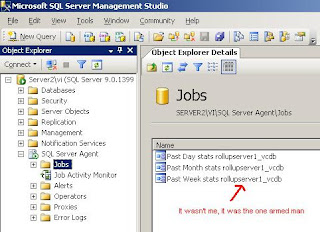
As you've probably guessed, 'server1_vcdb' is the name of my VC database. Sure, they probably meant to put a space in between 'rollup' and [databasename], but don't I feel just a little bit special ^_^. Thanks guys.
But surprise surprise - today I installed VC 2.5 Update 2, and guess what I saw

As you've probably guessed, 'server1_vcdb' is the name of my VC database. Sure, they probably meant to put a space in between 'rollup' and [databasename], but don't I feel just a little bit special ^_^. Thanks guys.
Monday, 30 June 2008
Manually Remove Datastores from VirtualCenter 2.0.x Database
Removing invalid datastores from the VirtualCenter database (in 2.0.x at least) is a bit of a pain... y'know, the ones that don't actually surface in the UI but you know are there because you get a "duplicate name" style error when adding a new datastore.
Manually editing the VirtualCenter database should never be taken lightly, and if there's a stored procedure or something that actually does this then someone please let me know. Otherwise, do the following:
1) Stop the VirtualCenter service and BACKUP THE VIRTUALCENTER DATABASE
2) Fire up whatever database management tool you like and connect to the VirtualCenter database.
3) Fire off the following query:
4) Find the offending datastore in the returned results, and make a note of the ID number (the first column)
5) Fire off another query:
6) Delete all rows returned from this query - all the values should be NULL (except the DS_ID column of course)
7) Go back to the VPX_DATASTORE table and delete the row with the non-existent datastore in it
In the case where you have a number of hosts that show as "inaccessible" as a result, you could put together a few more queries to handle that too... or even better do it in PowerShell! Hmmm, will have a look at that a bit later.
Manually editing the VirtualCenter database should never be taken lightly, and if there's a stored procedure or something that actually does this then someone please let me know. Otherwise, do the following:
1) Stop the VirtualCenter service and BACKUP THE VIRTUALCENTER DATABASE
2) Fire up whatever database management tool you like and connect to the VirtualCenter database.
3) Fire off the following query:
select * from VPX_DATASTORE
4) Find the offending datastore in the returned results, and make a note of the ID number (the first column)
5) Fire off another query:
select * from VPX_DS_ASSIGNMENT where DS_ID = id of datatstore to delete from previous query
6) Delete all rows returned from this query - all the values should be NULL (except the DS_ID column of course)
7) Go back to the VPX_DATASTORE table and delete the row with the non-existent datastore in it
In the case where you have a number of hosts that show as "inaccessible" as a result, you could put together a few more queries to handle that too... or even better do it in PowerShell! Hmmm, will have a look at that a bit later.
Thursday, 17 April 2008
Veeam Backup Install with Remote Database
Even with VMware Consolidated Backup and the release of VMware Site Recovery Manager around the corner, there is still a (gaping) hole left by these 2 products - the ability to failover a single guest to a regularly sync'ed and otherwise offline DR partner.
In the physical world there were 2 main reasons to invoke DR for a single node - physical hardware failure, or a configuration error that couldnt be recovered from fast enough. Virtual hardware obviously doesn't fail however (I know, I know, the underlying host could fail but you've all got HA enabled clusters to allow quick recovery from that don't you!), which leaves us pretty much with the configuration error problem. Whether it be due to OS or application patching, a change request gone pear shaped, rogue developers or administrators, whatever... the probability of a configuration error causing an outage is much greater than that of a datacenter outage (one would hope!). There is definitely a need to offer such a capability, as companies like Platespin (or Novell now I guess), Veeam and Vizioncore know all too well.
Veeam Backup is something I've been messing around with lately, and it certainly impresses in a number or areas, like being able to manage the inventories of multiple VirtualCenters and backup / replicate VM's or ESX host files between them from a single interface. I'm still waiting for someone in this space to eliminate the need for direct ESX host access though, but I digress...
NOTE that the following is pure hackery, and should not be used in production environments!
Anyway, onto the topic of the post. By default, Veeam Backup installs a SQL 2005 Express instance named 'VEEAM' on the box. Thankfully, they have built their product with enterprise scalability in mind (rare for a version 1 product from a small relatively new software company), you just need to know how to configure it. Which would be as follows:
1. Extract the files from the Veeam Backup single install binary.
2. Run 'setuplight.exe'. Make sure you have a generic domain account ready to use for the Veeam Backup service.
3. Go to the install directory, and modify the 'dbconfig.xml' file to point to your remote database host and instance.
4. While you're in the install directory, copy the 'DBcreate.sql' file to the remote database host.
5. On the remote database host, create a login for the generic domain account used in step 2.
6. Create a database named 'VeeamBackup' and set the owner to be the generic domain account login created in step 5. Dont just grant the login the db_owner role - the login should be directly mapped to the dbo account for the VeeamBackup database.
7. Open up the 'DBcreate.sql' file you copied over in step 4, add the following at the start of the file and execute it in Query Analyzer:
8. Now jump back on the box where Veeam Backup was installed, and fire up the GUI - you're done!
Video coming soon... in the meantime, go grab the bits and check it out for yourselves!
UPDATE The good folk at Veeam got in touch regarding this post... turns out I inadvertently stumbled upon something they're planning for a future Enterprise focused release. So don't deploy this configuration in your production environments just yet, and keep an eye out for the upcoming Enterprise product release. I'll be sure to run that through its paces too :-)
In the physical world there were 2 main reasons to invoke DR for a single node - physical hardware failure, or a configuration error that couldnt be recovered from fast enough. Virtual hardware obviously doesn't fail however (I know, I know, the underlying host could fail but you've all got HA enabled clusters to allow quick recovery from that don't you!), which leaves us pretty much with the configuration error problem. Whether it be due to OS or application patching, a change request gone pear shaped, rogue developers or administrators, whatever... the probability of a configuration error causing an outage is much greater than that of a datacenter outage (one would hope!). There is definitely a need to offer such a capability, as companies like Platespin (or Novell now I guess), Veeam and Vizioncore know all too well.
Veeam Backup is something I've been messing around with lately, and it certainly impresses in a number or areas, like being able to manage the inventories of multiple VirtualCenters and backup / replicate VM's or ESX host files between them from a single interface. I'm still waiting for someone in this space to eliminate the need for direct ESX host access though, but I digress...
NOTE that the following is pure hackery, and should not be used in production environments!
Anyway, onto the topic of the post. By default, Veeam Backup installs a SQL 2005 Express instance named 'VEEAM' on the box. Thankfully, they have built their product with enterprise scalability in mind (rare for a version 1 product from a small relatively new software company), you just need to know how to configure it. Which would be as follows:
1. Extract the files from the Veeam Backup single install binary.
2. Run 'setuplight.exe'. Make sure you have a generic domain account ready to use for the Veeam Backup service.
3. Go to the install directory, and modify the 'dbconfig.xml' file to point to your remote database host and instance.
4. While you're in the install directory, copy the 'DBcreate.sql' file to the remote database host.
5. On the remote database host, create a login for the generic domain account used in step 2.
6. Create a database named 'VeeamBackup' and set the owner to be the generic domain account login created in step 5. Dont just grant the login the db_owner role - the login should be directly mapped to the dbo account for the VeeamBackup database.
7. Open up the 'DBcreate.sql' file you copied over in step 4, add the following at the start of the file and execute it in Query Analyzer:
USE VeeamBackup
GO
8. Now jump back on the box where Veeam Backup was installed, and fire up the GUI - you're done!
Video coming soon... in the meantime, go grab the bits and check it out for yourselves!
UPDATE The good folk at Veeam got in touch regarding this post... turns out I inadvertently stumbled upon something they're planning for a future Enterprise focused release. So don't deploy this configuration in your production environments just yet, and keep an eye out for the upcoming Enterprise product release. I'll be sure to run that through its paces too :-)
Tuesday, 4 March 2008
VirtualCenter 2.5 Database Changes
It's no surprise that the database schema and stored procs have undergone a significant overhaul in VC 2.5, but for me some of the kep improvements is with regards to the statistics collection levels.
In VC 2.0.x the statistics collection level was a single global setting, with Level 1 being the default and VMware recommending that anything above Level 2 was used purely for diagnostic purposes.
But with 2.5, the stats collection levels can be configured per rollup period, which is great! So the recommendation now is to use Level 3 for Daily and Weekly rollups, and Level 1 for monthly and yearly. That makes it easy to do reporting on things like CPU Ready Time without needing tera's of disk for data that is pretty much useless after a week.
In VC 2.0.x the statistics collection level was a single global setting, with Level 1 being the default and VMware recommending that anything above Level 2 was used purely for diagnostic purposes.
But with 2.5, the stats collection levels can be configured per rollup period, which is great! So the recommendation now is to use Level 3 for Daily and Weekly rollups, and Level 1 for monthly and yearly. That makes it easy to do reporting on things like CPU Ready Time without needing tera's of disk for data that is pretty much useless after a week.
Monday, 7 January 2008
VirtualCenter Install Video, with Database Setup
In this video I show a semi-distributed VirtualCenter install (ie database is not local) using the command in the earlier post, and go through the database setup as well. I am by no means a DBA, so no doubt there is more that can be done to tune the database than what I show in the video. What I am however is an infrastructure guy, so the database is setup with minimal permissions on the Windows side and (I think) fairly minimal on the SQL side.
I may add a voice over at some point, but until then you can get the drift of what I might draw attention to in a commentary by way of my mouse movements. The database creation and permissioning can of course be scripted, and the last bits of what I do can be completely automated using sc and ntrights, but I thought I'd show it manually for some extra learning goodness. Enjoy!
NOTE: I'm really sorry - I'm still searching for somewhere I can host this video in a reasonable resolution for instructional video! If I don't find somewhere soon, I'll re-record the video and use a magnification tool on the relevant sections of the screen.
I may add a voice over at some point, but until then you can get the drift of what I might draw attention to in a commentary by way of my mouse movements. The database creation and permissioning can of course be scripted, and the last bits of what I do can be completely automated using sc and ntrights, but I thought I'd show it manually for some extra learning goodness. Enjoy!
NOTE: I'm really sorry - I'm still searching for somewhere I can host this video in a reasonable resolution for instructional video! If I don't find somewhere soon, I'll re-record the video and use a magnification tool on the relevant sections of the screen.
Subscribe to:
Posts (Atom)